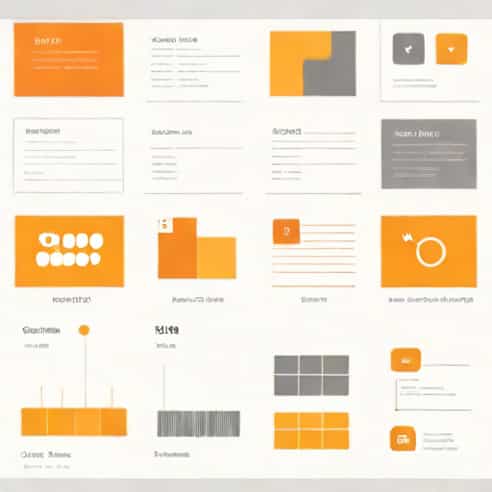
Microsoft PowerPoint is one of the most widely used tools for creating presentations, whether for business, education, or personal projects. Among its many features, the Slide Sorter view stands out as a powerful tool that allows users to see all slides in a presentation at a glance. This view simplifies the process of organizing, rearranging, and managing slides, offering a comprehensive perspective that is especially useful for lengthy presentations. For anyone looking to improve workflow efficiency and presentation design, understanding and using Slide Sorter view in PowerPoint is essential.
What is Slide Sorter View?
Slide Sorter view in PowerPoint is a display mode that shows miniature versions of all the slides in a presentation on a single screen. Unlike the standard Normal view, where slides are viewed one at a time, Slide Sorter view allows you to quickly visualize the entire presentation’s structure. This makes it easier to see the flow of content, identify gaps, and ensure a logical sequence. The thumbnails are interactive, meaning you can select, move, duplicate, or delete slides directly within this view.
Accessing Slide Sorter View
Accessing Slide Sorter view is straightforward. In most versions of PowerPoint, you can find it in the View tab on the Ribbon. Clicking on Slide Sorter will switch the display to show all slides in thumbnail form. Additionally, there are shortcut options such as clicking the Slide Sorter icon at the bottom of the screen or using keyboard shortcuts for quick access. Once in Slide Sorter view, users can adjust the zoom level to see more or fewer slides at a time, making it easier to navigate large presentations.
Benefits of Using Slide Sorter View
Slide Sorter view offers numerous advantages for anyone working with PowerPoint presentations. One of the main benefits is improved organization. By seeing all slides together, users can quickly identify inconsistencies, repetitive content, or slides that may be out of order. This view is also extremely helpful for planning transitions and animations, as it provides a holistic view of the entire presentation.
Rearranging Slides
One of the most practical features of Slide Sorter view is the ability to rearrange slides easily. Users can click and drag slides to new positions, instantly updating the presentation sequence. This is especially useful during the editing phase, when the flow of information may need to be adjusted to improve clarity or impact. Rearranging slides in Slide Sorter view is more efficient than moving slides one by one in Normal view, especially in presentations with dozens or hundreds of slides.
Managing Slides Efficiently
In addition to rearranging, Slide Sorter view facilitates other management tasks. Users can select multiple slides at once to apply uniform formatting, delete unnecessary slides, or duplicate slides for repeated sections. It is also easier to spot blank slides or placeholder slides that may have been left behind. This comprehensive overview allows for better control of the presentation’s structure and helps maintain consistency throughout.
Planning and Reviewing Presentations
Slide Sorter view is particularly valuable when planning or reviewing a presentation. For instance, educators can ensure that lessons follow a logical progression, and business professionals can verify that key points are presented in an effective order. Reviewing the entire presentation at a glance helps to detect pacing issues, such as slides that may require additional content or slides that could be condensed to avoid redundancy. This perspective ultimately contributes to creating a polished and professional final product.
Applying Transitions and Timings
Another practical use of Slide Sorter view is in the application of transitions and timings. Users can see how slides flow together and adjust transitions to maintain a smooth visual experience. When setting up automatic timings for self-running presentations, Slide Sorter view allows users to easily check the sequence and duration of each slide, ensuring the presentation runs seamlessly without requiring manual intervention. This is particularly useful for exhibitions, automated displays, or online presentations.
Collaborative Benefits
Slide Sorter view also enhances collaboration among team members. When multiple people are involved in creating a presentation, this view makes it easier to communicate about slide order, content flow, and structure. Team members can quickly provide feedback on the sequence, suggest rearrangements, or highlight slides that need further editing. The visual nature of Slide Sorter view reduces misunderstandings and streamlines the collaborative process, making it an essential tool in team projects.
Tips for Maximizing Slide Sorter View
- Use zoom controls to see more slides on the screen without losing visibility of individual slide details.
- Group related slides together to maintain logical sections within the presentation.
- Check slide consistency, including font styles, colors, and formatting, from this overview.
- Preview transitions and animations to ensure they create a smooth flow between slides.
- Regularly switch between Normal view and Slide Sorter view to balance detailed editing with overall organization.
Slide Sorter view in PowerPoint is a powerful feature that enhances the efficiency and quality of presentations. By providing a comprehensive visual overview of all slides, it allows users to organize, rearrange, and manage content effectively. This view is particularly beneficial for planning transitions, reviewing the logical flow of information, and collaborating with team members. Whether for educational purposes, business meetings, or personal projects, utilizing Slide Sorter view ensures that presentations are well-structured, cohesive, and visually appealing.
Understanding how to use Slide Sorter view effectively can transform the way you create and edit presentations. By taking advantage of its features, such as easy rearrangement, multi-slide management, and timing adjustments, you can save time while improving the overall quality of your work. Combining Slide Sorter view with other PowerPoint tools and techniques allows for a streamlined workflow, making the process of designing presentations less stressful and more productive. Ultimately, mastering Slide Sorter view empowers users to create compelling, organized, and professional presentations that leave a lasting impact on their audience.